Wi-Fi 7 WFH router: Upgrading Your WFH Internet: Wi-Fi 7 Mesh Routers for High-Bandwidth Hybrid Roles
Jump to section
Few work-from-home experiences are as frustrating as having your audio stutter or video freeze right in the middle of a critical client presentation. Standard wireless networks often struggle when remote workers compete for bandwidth alongside streaming TVs, smart home sensors, and cloud backups running in the background. If your hybrid role requires transferring large software builds, uploading raw video footage, or maintaining persistent secure shell (SSH) sessions over corporate networks, upgrading your home infrastructure with a Wi-Fi 7 WFH router can solve these persistence and latency bottlenecks.
Built on the IEEE 802.11be standard, Wi-Fi 7 introduces technical improvements designed specifically to handle high-density network demands and time-sensitive traffic. Rather than simply boosting raw top-end speeds that look impressive in marketing materials, this technology focuses heavily on reducing latency, improving signal reliability, and managing interference across suburban neighborhoods and dense apartment buildings. Here are seven ways Wi-Fi 7 mesh systems transform remote workspace connectivity, along with practical guidelines on picking and configuring the right hardware for your desk setup.
Wi-Fi 7 WFH router: 1. Multi-Link Operation for Stable, Low-Latency Video Calls
In previous Wi-Fi generations, a connected client device like a laptop or phone could only transmit and receive data over a single frequency band at a given moment—either 2.4 GHz, 5 GHz, or 6 GHz. If that chosen frequency encountered sudden interference from a microwave or a neighbor's router, your connection experienced packet loss, causing frozen video frames on Zoom or Microsoft Teams. Wi-Fi 7 changes this fundamental mechanism through a feature called Multi-Link Operation (MLO).
With MLO, a compatible client device connects to multiple wireless bands simultaneously. Data packets travel across whichever band has the lowest congestion at that exact microsecond. For hybrid professionals who rely on live video feeds, VoIP calls, or real-time remote desktop access, MLO dramatically reduces jitter and bufferbloat. Even if one frequency experiences a brief burst of interference, your work laptop routes data across the secondary band without dropping packets or disconnecting your session.
2. Wider 320 MHz Channels and 4K-QAM for Massive Transfers
For creative directors, data engineers, and software developers, transferring massive files over Wi-Fi has historically required a long wait or a temporary trip to plug directly into the router. Wi-Fi 7 expands the maximum channel bandwidth on the 6 GHz spectrum from 160 MHz (found in Wi-Fi 6 and 6E) up to 320 MHz. Doubling the highway width allows far more data to pass through concurrently.
In tandem with wider channels, Wi-Fi 7 introduces 4096-QAM (4K-QAM), an advanced modulation scheme that packs 20% more data into each transmitted signal wave compared to the 1024-QAM used in Wi-Fi 6. When paired with a multi-gigabit home fiber connection, this combination enables rapid local network backups to a Network Attached Storage (NAS) array and cuts down wait times when pulling multi-gigabyte code repositories or 4K/8K video assets from cloud storage.
3. Preamble Puncturing to Avoid Neighborhood Airwave Interference
One of the most common issues in residential areas is channel congestion. In older wireless standards, if a neighboring router used a small portion of an otherwise wide channel (such as an 80 MHz or 160 MHz block), your router was forced to back off and drop down to a much narrower channel size, cutting your local transmission speed in half or worse.
Wi-Fi 7 addresses this inefficiency with Preamble Puncturing. This feature allows your router to "slice out" or ignore the specific narrow frequency slice that is suffering from localized interference, while keeping the remaining wide channel open for active data flow. If you live in an apartment complex or a closely built suburban neighborhood, preamble puncturing keeps your office network running at high capacity without dropping connection quality whenever your neighbors boot up their own wireless devices.
4. Multi-Gigabit Ports to Support Fiber Optic Speeds
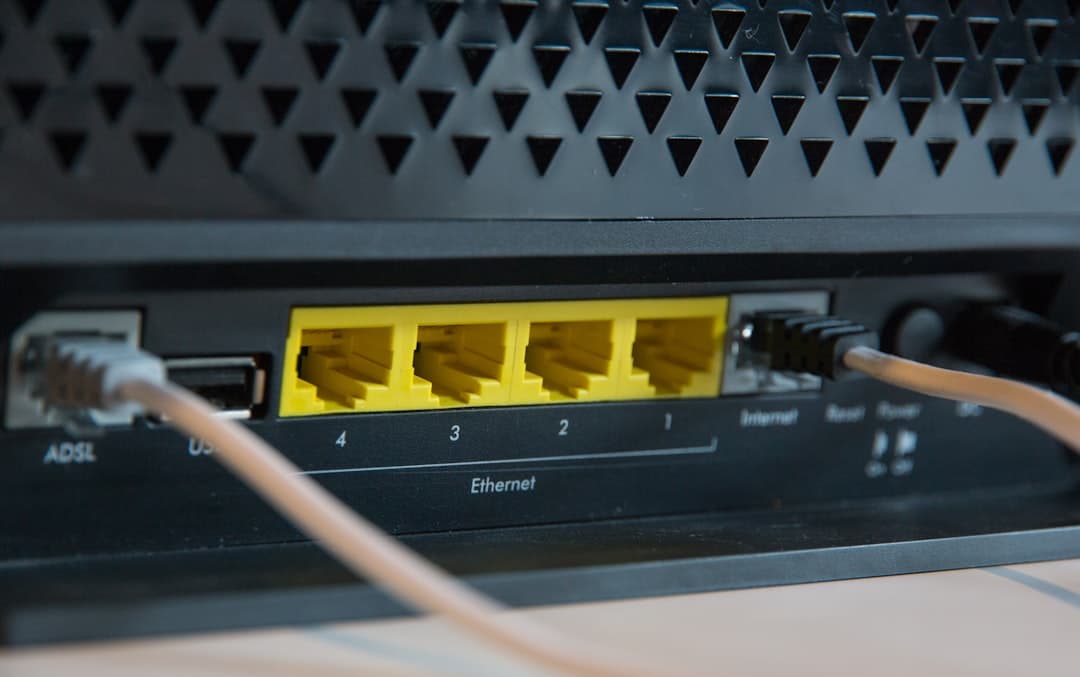
Installing a high-speed internet plan with 1 Gbps, 2 Gbps, or 5 Gbps fiber means little if your router relies on traditional 1 Gbps Ethernet ports that bottleneck the incoming signal. Modern Wi-Fi 7 hardware routinely incorporates 2.5 Gbps or even 10 Gbps Ethernet WAN and LAN ports, ensuring your internal network can utilize every megabit offered by your internet service provider (ISP).
Connecting your primary work laptop directly to a satellite mesh node using a 2.5G Ethernet port gives you wired-level stability while maintaining the convenience of a mesh backhaul. When organizing cables around your desk, routing these high-speed lines properly prevents signal degradation and physical clutter. If you manage multiple desktop accessories or backup drives on your desk, consider reviewing desk cable management essentials to keep ethernet runs and power adapters neat and accessible. Additionally, plugging your central router and optical network terminal (ONT) into a UPS battery backup setup ensures your home office stays online during brief power flickers.
5. Choosing the Right Wi-Fi 7 WFH Router Tier for Your Budget
Upgrading to a Wi-Fi 7 WFH router does not automatically mean spending four figures, though high-end options certainly exist. Pricing generally falls into three distinct tiers depending on coverage area, port selection, and backhaul hardware capabilities. When selecting hardware, weigh your physical home layout against your daily bandwidth demands.
Entry-level dual-band Wi-Fi 7 mesh systems typically cost between $120 and $350 for a two- or three-pack (such as the TP-Link Deco BE25 or Amazon eero 7). These suit smaller townhomes or single-floor apartments needing reliable dead-zone elimination, though they lack a dedicated 6 GHz backhaul band. Mid-range tri-band mesh systems range from $400 to $800 (such as the TP-Link Deco 7 Pro BE63, eero Pro 7, or Netgear Orbi 770 Series). This tier serves as the sweet spot for multi-story US home offices, offering dedicated wireless backhaul bands and 2.5G ports. Ultra-performance systems range from $900 to over $1,700 (like the Netgear Orbi 970 or ASUS ZenWiFi BQ16 Pro), delivering enterprise-grade quad-band throughput and 10G ports for large properties or heavy local server workflows (prices vary — check retailer for current pricing).
6. Optimal Mesh Node Placement to Eliminate Office Dead Zones
A frequent mistake remote workers make when setting up a mesh network is placing a secondary satellite node directly on their office desk inside an existing Wi-Fi dead zone. If the satellite node itself receives a weak signal from the main router, the internet connection handed off to your laptop will remain slow and unreliable regardless of how advanced the hardware is.
Place your main router unit next to your ISP modem or fiber ONT. Position your secondary mesh node roughly halfway between the main router and your home office desk, ensuring clear line-of-sight through hallways where possible. This positioning allows the satellite to capture a strong, high-bandwidth signal from the base unit and re-transmit clean wireless coverage into your workspace. If your home has built-in Cat6 or Cat6a wall jacks, connecting your mesh nodes together using a wired Ethernet backhaul completely frees up wireless spectrum for your end devices, delivering maximum throughput.
7. Network Configuration Strategies for Security and Stability
Hardware is only half the equation; proper software configuration ensures your corporate tools operate smoothly. If your ISP supplied a combination modem-router gateway, switch that device into "Bridge Mode" or "IP Passthrough" during initial setup. Running two active routers creates a Double NAT (Network Address Translation) environment, which frequently breaks corporate VPN connections, VoIP calls, and remote SSH tunnels.
Furthermore, take advantage of the multi-network features available in modern router administration apps. Establish a separate Guest or IoT network for smart home plugs, security cameras, and TVs, keeping those devices segregated from your primary Wi-Fi 7 network. Assign your primary work laptop to the main network and configure Quality of Service (QoS) rules to prioritize its MAC address. This guarantees that background app updates on other household devices will never throttle your internet access during critical work hours.
Keep reading
Related Articles
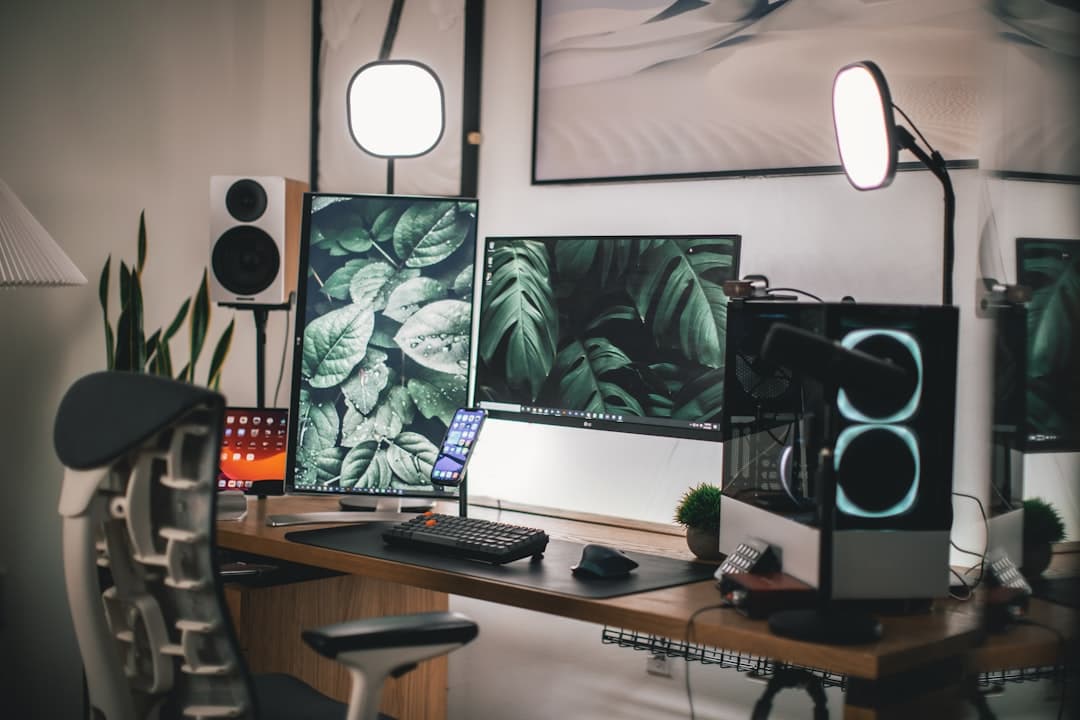
Shared Two Person Home Office Layout Ideas: Desk Placement and Acoustics
Designing a functional two person home office layout requires balancing physical desk spacing, video call backgrounds, electrical loads, and acoustic isolation.
How to Soundproof Home Office Door for Privacy: Step-by-Step Guide
Block household distractions and secure confidential calls by learning how to seal air gaps, add mass, and soundproof your home office door effectively.
How to Choose Home Office Lighting for Video Calls and Reduced Eye Strain
Learn how to balance key lighting, color temperature, and ambient light to look clear on camera while reducing visual fatigue during long remote workdays.