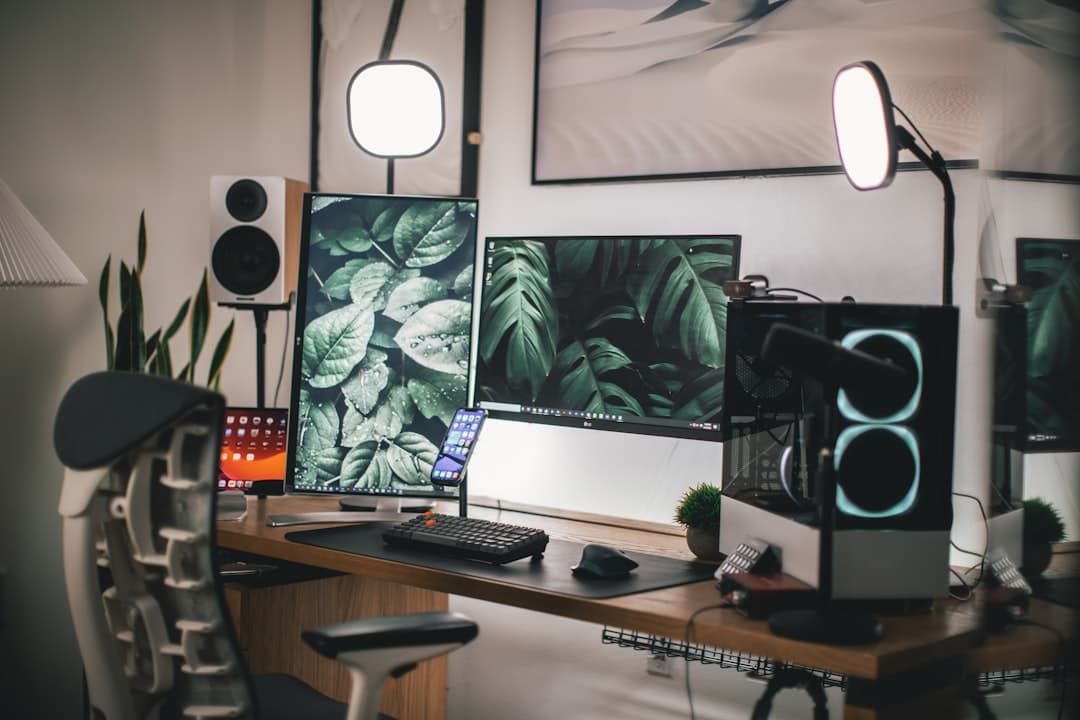
Ergonomic Dual Monitor Desk Setup for Remote Work: Full Setup Guide
Jump to section
Adding a second screen to your home workspace is one of the quickest ways to increase screen real estate, streamline research, and manage complex daily workflows. However, simply dropping two displays onto your desk without a plan often leads to awkward neck twisting, shoulder stiffness, and constant eye strain by mid-afternoon. Building an ergonomic dual monitor desk setup for remote work requires balancing physical comfort with smart spatial organization.
Please note that the ergonomic tips provided in this article are for general comfort and productivity purposes and do not constitute medical advice. If you experience persistent neck, back, or shoulder pain, consider consulting a healthcare professional or an ergonomics specialist.
The Dual Screen Dilemma: Productivity Boost or Physical Strain?
Working across multiple documents, video calls, spreadsheets, and chat channels demands efficient screen space. A second display allows you to keep reference materials open on one side while typing on the other, eliminating constant window swapping. Yet, adding hardware introduces new ergonomic challenges. When screens are positioned incorrectly, your head repeatedly moves outside its natural resting line, putting continuous strain on your cervical spine.
To build a workspace that supports long hours of remote work, you must design your layout around human physiology first and tech hardware second. Whether you use twin identical monitors or pair a main desktop screen with a laptop display, small adjustments in angle, height, and viewing distance yield dramatic improvements in comfort.
Choosing Your Display Layout: Primary/Secondary vs. Centered Split
Before purchasing mounts or arranging cables, decide how you actually use your screens during the workday. Your daily software use dictates how your screens should be aligned horizontally.
Option A: The Primary and Secondary Layout
If you perform 70% or more of your work on a single main application—such as writing, coding, or video editing—position your primary monitor directly in front of your keyboard. The secondary monitor should sit immediately to the left or right, angled inward at roughly 15 to 30 degrees, like a gently curved door.
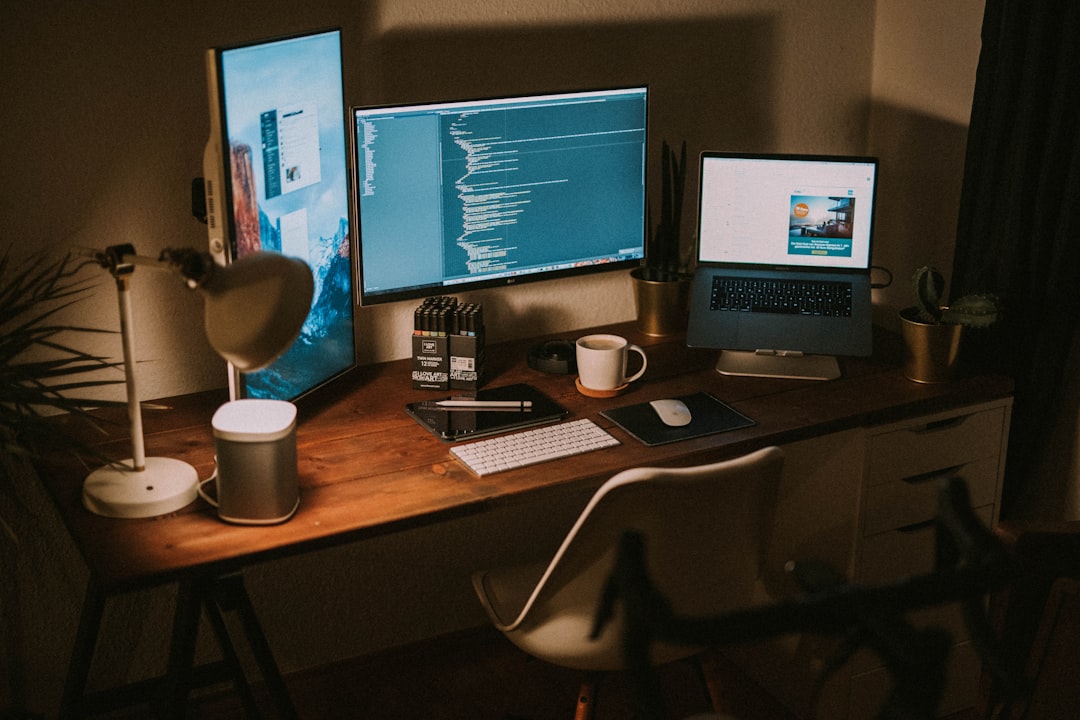
This configuration keeps your neck relaxed and straight for the vast majority of your day. You only glance over at the secondary screen for quick reference checks, monitoring communications, or keeping Spotify open, minimizing prolonged neck rotation.
Option B: The Centered Equal-Split Layout
If your work involves splitting time 50/50 between two applications—for example, comparing data sheets side by side or writing code on one screen while viewing execution results on the other—place both screens so their inner bezels meet directly in front of your nose.
Angle both displays slightly inward in a shallow V-shape. This reduces the distance your eyes have to refocus when jumping between the outer edges of each screen. However, ensure your main keyboard home row sits precisely at the center point so your wrists remain neutral.
Comparing Dual Monitor Arrangements
| Layout Style | Best For | Ergonomic Advantage | Potential Trade-off |
|---|---|---|---|
| Primary + Secondary | Single-task focus, writing, coding, core application work | Keeps neck straight for 70-80% of the workday | Secondary screen requires periodic head turning |
| 50/50 Centered Split | Data comparison, dual-doc editing, parallel research | Equal viewing distance to both displays | Center bezel can feel visually interrupting |
| Stacked (Vertical) | Shallow desks, viewing long code or monitoring dashboards | Saves horizontal desk space | Requires slight vertical tilt; higher screen can strain neck if too high |
Ergonomic Height, Distance, and Angle Rules
Once your layout strategy is set, focus on exact physical positioning. Misaligned height and improper focal distances are the primary drivers of forward head posture and upper back fatigue.
Finding the Right Screen Height
Sit comfortably in your desk chair with your feet flat on the floor and your shoulders relaxed. Look straight ahead. The top third of your display glass—not the physical top frame—should sit at or slightly below your horizontal line of sight.
When screens sit too high, you unconsciously tilt your chin upward, compressing the muscles at the base of your skull. If your monitors sit too low, you slump forward into a hunched posture. If you use monitors of different physical sizes, align them by their upper visual edges rather than matching their base stands.
Calculating Viewing Distance
A simple guideline for screen distance is the arm's-length rule. Extend your arm straight toward the monitors while seated back in your chair. Your fingertips should gently touch or sit just an inch or two away from the screen glass. For most setups, this means a distance of 20 to 30 inches (50 to 75 cm).
If you find yourself leaning forward to read small text, increase your operating system's display scaling percentage (e.g., set scaling to 125% or 150%) rather than moving the heavy monitors closer to your eyes.
Hardware Essentials: Monitor Arms vs. Desk Stands
Stock stands provided with monitors take up substantial surface real estate and rarely offer deep depth or height adjustments. Transitioning to an adjustable dual monitor arm is the single most effective hardware upgrade for clean ergonomics.
Dual Articulating Monitor Arms
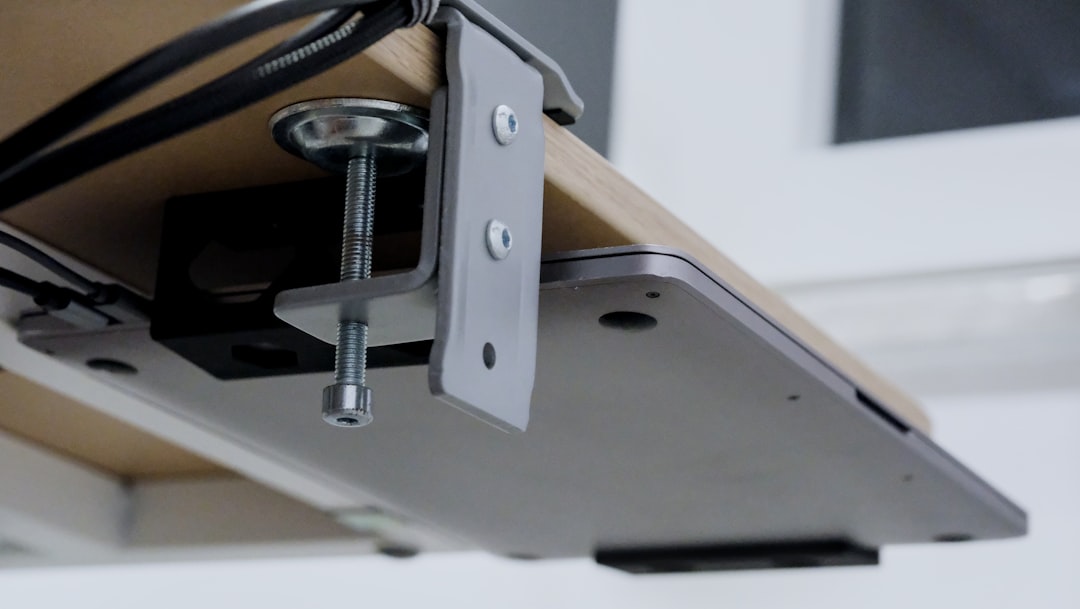
A quality desktop-mounted monitor arm clamps securely to the back edge of your desk, freeing up the desk surface beneath the displays. Articulating arms allow you to push screens back, pull them forward, tilt, rotate, and micro-adjust height independently.
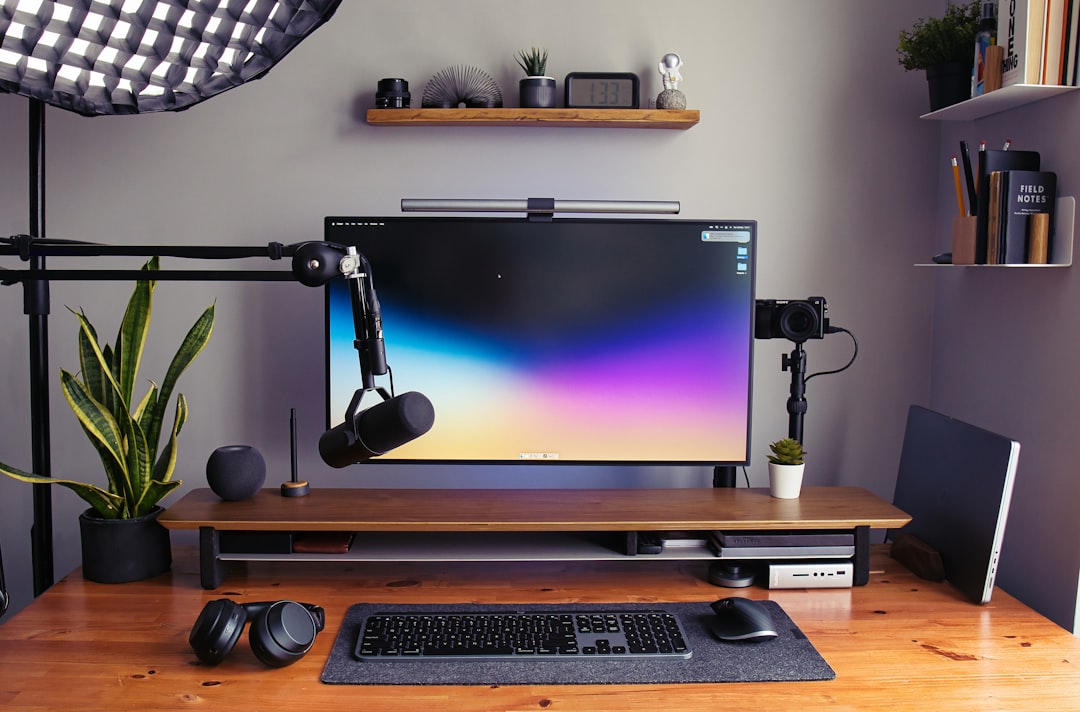
When choosing a monitor arm, check three specifications:
- Weight Capacity: Ensure the arm supports the weight of your monitors without the screen glass attached to stock stands.
- VESA Compatibility: Verify your monitors feature standard VESA mounting patterns (typically 75x75mm or 100x100mm).
- Desk Clamp Thickness: Confirm your desk top thickness is compatible with the mount clamp. If you are learning how to plan a budget standing desk setup that lasts, make sure your desk surface is sturdy solid wood or high-density composite to withstand the localized clamping pressure.
Single Arms vs. Dual Arm Mounts
While a single dual-monitor desktop mount saves clamping space, using two separate single monitor arms often provides greater positioning flexibility. Dual arms sharing a single central pole can make fine depth adjustments challenging if your desk sits flush against a wall.
Cable Management and Peripheral Alignment
A cluttered workspace leads to fragmented mental focus. With two screens come twice the power cables, display connections, and device cords. Keeping your physical surface orderly allows you to maintain clean movement zones for your keyboard and mouse.
Route display cables through the internal cable channels of your monitor arms down to a single USB-C or Thunderbolt docking station. A unified dock allows you to connect a laptop with a single cable, transferring power, dual video signals, and peripheral data simultaneously.
Position your keyboard directly under your primary focal area so your wrists stay straight while typing. Place your mouse close to the keyboard side to avoid reaching outward, which strains the shoulder joint over a full workday.
Managing Lighting and Reducing Eye Fatigue
Dual displays produce twice the luminous output of a single screen. Balancing ambient workspace light with your monitor glare is essential for preventing headaches and dry eyes.
- Position Relative to Windows: Avoid placing your dual monitors directly opposite a window, which causes harsh reflections on the glass. Likewise, facing a bright window directly forces your eyes to balance extreme backlighting with screen output. Position your desk perpendicular to windows whenever possible.
- Desk Lighting: Use an overhead monitor light bar or a warm, indirect desk lamp to illuminate your desk surface without throwing reflections onto the screen glass.
- Color Temperature and Brightness: Match your screen brightness to the general illumination of your room. Activate built-in blue light reduction software during late afternoon working hours to keep viewing comfortable.
Checklist: Setting Up Your Ergonomic Dual Monitor Workspace
- Determine primary focal screen vs. equal 50/50 split preference
- Verify VESA mounting holes on the back of both monitors
- Mount dual monitors to an adjustable arm or sturdy riser
- Set monitor height so top third of glass sits at eye level
- Confirm screens sit roughly an arm's length (20–30 inches) away
- Angle side screen inward 15–30 degrees to reduce neck rotation
- Consolidate display and power cables using cable sleeves or clips
- Center keyboard and mouse to avoid shoulder reaching
- Adjust display brightness to match ambient room light
Frequently Asked Questions
Is it better to use two identical monitors or different sizes?
Identical monitor models of the same resolution and panel type offer the best visual continuity. However, using different screen sizes—such as a 27-inch primary screen paired with a 24-inch secondary display—works exceptionally well if you align their upper visual edges and scale operating system resolutions properly.
How deep should my desk be for a dual monitor setup?
A desk depth of at least 28 to 30 inches is recommended for dual monitor setups. Shallow desks (under 24 inches deep) place large screens too close to your eyes unless you use deep monitor arms clamped to the back edge to push the screens backward.
Can I use a laptop as a second monitor ergonomically?
Yes, provided you lift the laptop screen using a dedicated laptop stand or arm mount so its display top aligns horizontally with your external monitor. Never rely on looking down at a flat laptop sitting on your desk while looking up at a main display, as constant vertical head tilting leads to rapid neck muscle fatigue.
Keep reading
Related Articles
Building a WFH Indoor Air Quality Setup: CO2 Monitors, Air Purifiers, and Focus
Learn how to optimize your home office air quality with CO2 monitors, HEPA air purifiers, and targeted ventilation protocols to prevent fatigue and boost daily focus.
How to Build an Active Workstation with an Under-Desk Walking Pad
Learn how to build an active walking pad standing desk setup, from selecting gear and calculating ergonomic heights to managing noise and daily pacing.

Uplift Desk Long-Term Review: Practical Ergonomics and Real Workspace Trade-offs
A long-term practical setup guide for the Uplift Desk, covering ergonomic height calibration, frame stability, cable routing, and real-world workspace trade-offs.